From PDF to Markdown
Convert text, equations, tables and images into material you can edit locally. Check complex layouts against the source.
Turn PDFs into editable Markdown in Obsidian. Translate what you want to read closely. Keep the source, translation and your notes in one vault.
For Obsidian on desktop. Installation guide
Free plugin · PDF conversion uses no translation credits · One-time translation packs
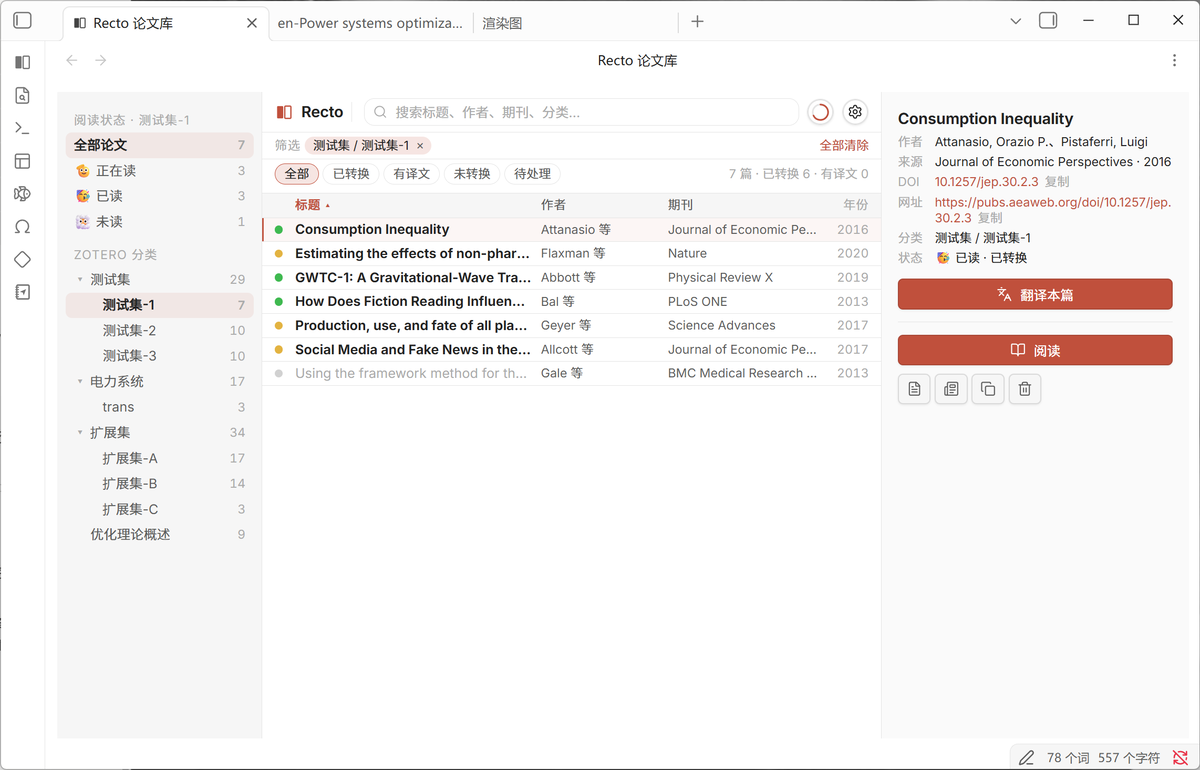
Convert text, equations, tables and images into material you can edit locally. Check complex layouts against the source.
Translate PDFs or existing Markdown and read alongside the source in Obsidian. Return to the original when a detail matters.
Start with Zotero or a local PDF. Organize papers, reading status and notes, with processed files saved in your own Obsidian vault.
You need Obsidian on desktop, the Recto plugin and an email account for cloud processing. Install through Community plugins to manage Recto within Obsidian.
Open Obsidian on desktop → Settings → Community plugins → Browse. Search for Recto by Jensen Zheng, then select Install and Enable.
If Obsidian does not open, follow the menu path above and search for Recto.
If the Community listing is temporarily unavailable, download from GitHub Releases the files main.js, manifest.json and styles.css. Place them in your vault’s .obsidian/plugins/recto/ folder, restart Obsidian and enable Recto.
Start browser sign-in from the plugin and verify your email. Choose a PDF or Markdown file you are authorized to process, then enable cloud processing.
Start conversion or translation; the plugin writes completed results to your local vault. Translation requires sufficient credits. See pricing and delivery.
Cloud processing uploads your selected content and may use third-party services.